


Instagram finally upgraded its music feature—Stories can now include up to 45 seconds of music instead of just 15. With this update, you can now post a 45-second video and add music, making your Stories more engaging and expressive.
But here's the catch: the limit doesn't always work the way you expect. If you've ever struggled to get longer music on your Stories, you're not alone. Many content creators, marketers, and businesses still face limitations when using Instagram's music feature.
So, let's learn how to make music longer than 15 seconds on the Instagram story. Check out our quick guide to learn some new interesting techniques for your Instagram stories.
3 Ways to Make Instagram Story Music Longer:



Method 1 Use Instagram's 45-Second Music Feature to Add Music Longer Than 15 Seconds
Good news: Instagram is finally expanding its music feature. With the latest update, Stories can now include up to 45 seconds of music, replacing the old 15-second limit. With this update, you can post longer videos and add music tracks up to 45 seconds, making your Stories more engaging and expressive.
This method works for most users, depending on account type and region, and is the easiest way to extend music without third-party apps. Let's check the video tutorial and detailed steps below:
How To Make Instagram Story Music Longer Than 15 Seconds
Step 1: Update and Launch Your App
Make sure you have the latest version of the Instagram app installed on your phone. If not, go to the App Store (for iOS) or Google Play Store (for Android) and update Instagram to the newest version.
Now, go ahead and open the Instagram App on your phone and make sure you're signed in.
Step 2: Create a story
To take a picture story you have three options:
2. Or tap on + sign on your thumbnail of your profile picture at the top left corner of the screen.
3. Or you can simply swipe right from the Instgram feed screen.
Take a photo from their and then click on the smiley option of Sticker button on the top of the screen. A lot of Instagram stickers will pop up. Select the music sticker for your story.
Step 3: Search for relevant music
By clicking on the music option on the tap, a music library will roll out that has thousands of songs to pick from. Popular, Genres and Moods are the three categories you can simplify your search through. Or you can also type in your music name in the search bar. All the songs on the list are licensed to be used for stories.
Step 4: Get a preview
Preview the music on your story to check whether it vibe well with your picture or not. You can do this by clicking on the play button beside each song. If you are using Genres and Moods option then you’ll have to select the kind of music you prefer.
Now drag the selection box to the story and adjust the part where you want the song to begin from.
Step 5: Adjust the music length
Instagram allows you to add music and adjust its time length accordingly. For static images, you can keep your music from 1 second to 45 seconds with the latest update. To change the music length click on the duration icon on the left and choose your desired length from 5 seconds to 45 seconds.
The fun doesn't stop here Instagram also allows you to add lyrics to your added music to the story. This happens when the lyrics are available for the song. If lyrics are not available so they won't pop up.
Step 6: Publish the story
Once all the editing and music-related work are done you can finally post your story. Choosing your desired stickers which you can resize as well. This way you can add an extremely interesting element to your story. Finally, click on the Done button and then "Send To" to make your story visible to your followers.
Method 2 Split Your Instagram Story into Slides to Beat the 15s Limit without the Update
If you don't yet have access to Instagram's 45-second music update, don't worry! You can still extend your music by splitting your Story into multiple slides - each clip can use Instagram's 15-second music limit. This trick works especially well for longer songs or continuous music videos. Here's how:
How To Make Instagram Story Music Longer Than 15 Seconds
Method 3 Pre-Edit Your Instagram Story Video With Longer Music to Beat the 15s Limit
For those who want to take full control over your Story's music and make polished, professional Stories, the most consistent workaround is to pre-edit videos before uploading to your Instagram Story.
FlexClip is a simple and powerful online tool to pre-edit your Instagram Stories with full control over music, visuals, and timing. With FlexClip, you can add full-length songs, trim videos, sync music to key moments, and export your content in Instagram-ready formats, all without complicated software.


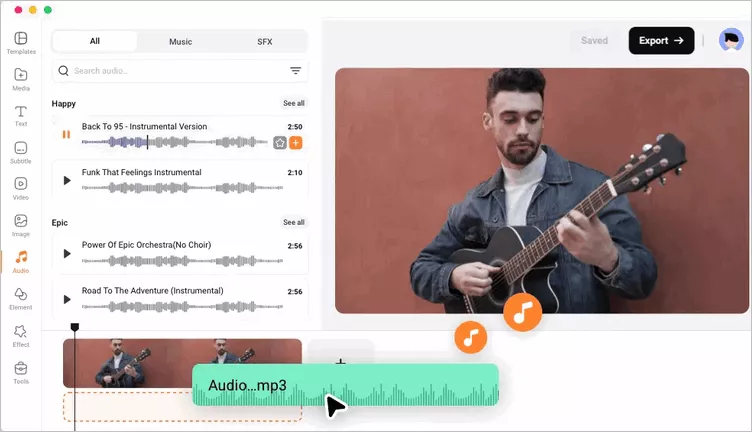
Pre-Edit Your Instagram Story Video With Longer Music Using FlexClip
Here are some of the advantages of using FlexClip for making better Instagram stories:
Now, check the steps below to learn how to using FlexClip to pre-edit your Instagram Story video with longer music before uploading:
Step 1 Upload Your Instagram Story Content
Open FlexClip's video editor and start to upload your video clips or photos you want to include in your Instagram Story. You can upload multiple clips to create a longer Story.
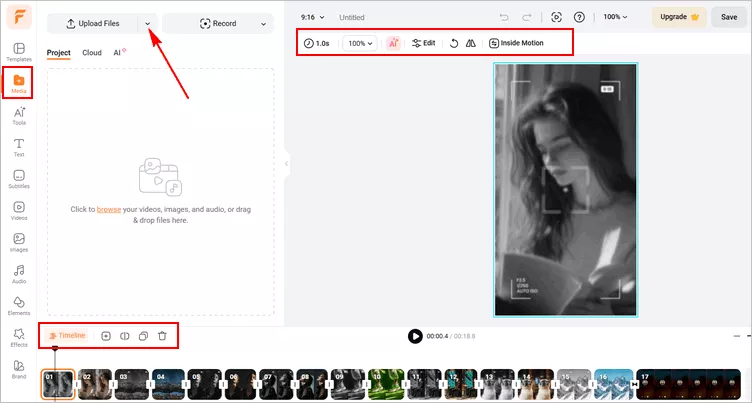
Pre-Edit Your Instagram Story Video With Longer Music: Upload
Then, add them to the timeline and arrange the sequence or make any basic edit to cut or trim your clips if needed.
Step 2 Add Music to Your Story Video
Click the Audio tab on the sidebar to choose a song from FlexClip's royalty-free library. You can add as many audio tracks, including music and any sound effect, as you like. Or yu can upload your own audio file from your computer.
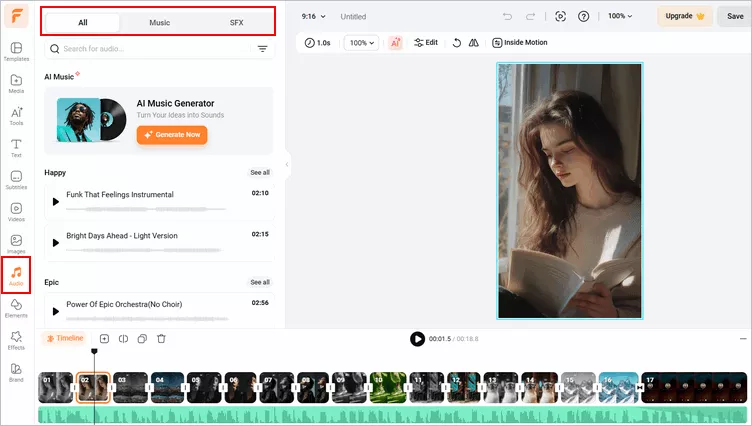
Pre-Edit Your Instagram Story Video With Longer Music: Add Music
Step 3 Edit the Music and Video
Once added, you can trim it to set the music length and adjust the position where the music starts and ends, and apply the fade-in/out effect to make the music match your video perfectly.
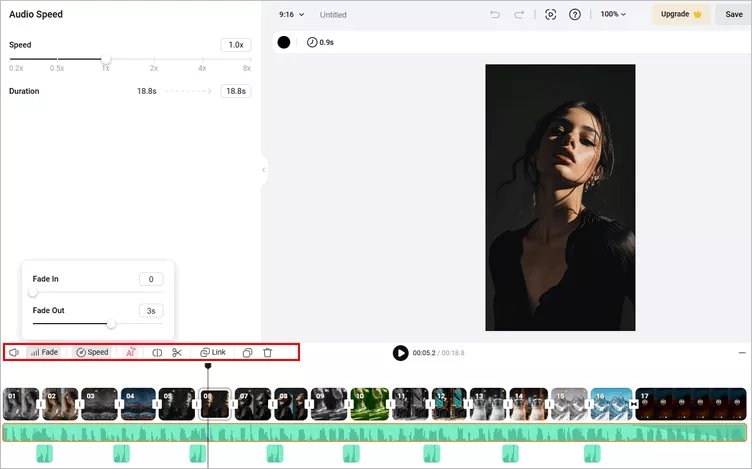
Pre-Edit Your Instagram Story Video With Longer Music: Edit
Here, you can also trim clips to match your music, add text, overlays, transitions, or effects using FlexClip's powerful editing tools to make sure the music syncs with key moments in your Story for maximum impact.
Step 4 Export and Post It on Your Instagram
Once your Story looks perfect, click Export to download your video with music.
Finally, open Instagram, go to Stories, and upload your pre-edited video. Your full-length music will now play seamlessly, without being cut off by the 15-second limit.
The Bottom Line
Ready to level up your Instagram Stories? Start experimenting with longer music today and watch your engagement soar! Avoid going through the hectic of making Instagram stories directly from the app. Rather try FlexClip which has numerous templates and royalty-free music to make your stories more lively and fun. This online video and photo editor has our 5-star rating which has simplified our content-making task. Give it a try!




FlexClip AI Video Maker
Reach professional-quality videos faster with easy editing tools, templates, and smart AI.
Start Now for Free
Hot & Trending
-

Best Ways to Find Music in YouTube Videos
-

Instagram Story Video Quality Bad After Upload? Fix It!
-

How to Repost Video on TikTok & How to Remove TikTok Repost
-

Improve Video Quality Online: 3 AI Video Quality Enhancers You Can't Miss
-

4K Convert to HD 1080p without Watermark: Best 4k Video Converters
-

Best 8 Free Video Editors - No Download Required
-

Top 13 Birthday Video Makers with Music and Effects Free
-

How to Search Filters on TikTok & Use a Filter You See - TikTok Filter Guide




